Choose "Make this ad premium" at checkout.
-
Business Opportunities (1380)
- Work From Home (87)
- Business Opportunities (9)
- Businesses For Sale (35)
- Agents Dealers Wanted (0)
- Distributors Wanted (0)
- Wholesalers (1)
- Work At Home (0)
- Computer (7)
- E Books (0)
- Energy (3)
- Food (15)
- General (47)
- Health (41)
- Publishing (31)
- Real Estate Opportunities (33)
- Representatives (0)
- Technology Opportunities (4)
- Telecom (0)
- Travel (40)
- Turnkey Websites (141)
- Web Promotion (89)
- Web Promotion (0)
- Web Traffic (70)
- Advertising (96)
- Affiliate Marketing (1)
- Marketing/Sales (4)
- Start Your Own Biz (594)
-
For sale (1159)
- Animals (59)
- Art - Collectibles (27)
- Barter (0)
- Books Magazines (27)
- Cameras - Camera Accessories (4)
- CDs - Records (0)
- Cell Phones - Accessories (0)
- Clothing (64)
- Computers Hardware (0)
- DVD (0)
- Electronics (60)
- For Babies - Infants (13)
- Garage Sale (0)
- Health Beauty (111)
- Home - Furniture - Garden (210)
- Jewelry - Watches (51)
- Musical Instruments (0)
- Sporting Goods - Bicycles (15)
- Tickets (5)
- Toys - Games - Hobbies (40)
- Video Games - Consoles (3)
- Everything Else (389)
-
Vehicles (380)
- Cars (63)
- Car Parts (55)
- Motorcycles (1)
- Boats - Ships (15)
- RVs - Campers - Caravans (2)
- Trucks - Commercial Vehicles (189)
- Other Vehicles (4)
-
Classes (101)
-
Real estate (66)
- Houses - Apartments for Sale (24)
- Houses - Apartments for Rent (4)
- Rooms for Rent - Shared (2)
- Housing Swap (0)
- Vacation Rentals (2)
- Parking Spots (0)
- Land (7)
- Office - Commercial Space (1)
- Shops for Rent - Sale (2)
-
Services (3319)
- Legal Services (98)
- Real Estate Services (25)
- Travel Services (96)
- Babysitter - Nanny (0)
- Casting - Auditions (2)
- Computer (60)
- Event Services (48)
- Financial Services (321)
- Health Beauty Fitness (171)
- Horoscopes - Tarot (139)
- Household - Domestic Help (17)
- Moving - Storage (13)
- Repair (139)
- Writing - Editing - Translating (9)
- Other Services (1013)
-
Community (29)
- Carpool (0)
- Community Activities (4)
- Events (20)
- Musicians - Artists - Bands (2)
- Volunteers (0)
- Lost And Found (0)
-
Jobs (986)
- Accounting - Finance (3)
- Advertising - Public Relations (9)
- Arts - Entertainment - Publishing (8)
- Clerical - Administrative (0)
- Customer Service (1)
- Education - Training (288)
- Engineering - Architecture (3)
- Healthcare (89)
- Human Resource (1)
- Internet (0)
- Legal (3)
- Manual Labor (4)
- Manufacturing - Operations (71)
- Marketing (56)
- Non-profit - Volunteer (8)
- Real Estate (85)
- Restaurant - Food Service (45)
- Retail (24)
- Sales (147)
- Technology (80)
- Other Jobs (56)
Premium Listings:
-
 Guide to Building a ProfitableWork From Home - Daniel Island (South Carolina) - May 24, 2026 Free
Attention Online Marketers! Download Our FREE eBook Now And Discover: It's READY! Now you Can Profit Online - SEE the EXCITING details here! This eBook is incredible and offers REAL value for one purpose - helping you make sales - in ANY PROGRAM!... ...
-
 The 3 simple steps to get startedWork From Home - South Setauket (New York) - May 20, 2026 Free
As you have probably heard, LiveGood is officially the fastest growing company in the entire nutritional supplement industry!And while we are super proud of that, a big reason for it is because we listen to our members and customers!The more we und...
-
 "BEST DOG CHEW EVER!!! Beef knuckle Bones!"Animals - Saint Regis (Montana) - May 18, 2026 Free
All Natural, Top Quality, Long Lasting Tough chews & Meaty Tibits, For All Breeds. Dental & Chewing Benefits Made in USA Please visit here for more details...
-
 Affiliates Needed 50% Comm. www.SSWYF.orgOther Jobs - Strafford (New Hampshire) - May 13, 2026 Free
Partner with the Showalter Foundation and earn money through fundraising opportunities that can help change lives and strengthen communities. Costs are rising everywhere: Housing costs are up Groceries are more expensive Healthcare and medicine costs...
-
 Breakthrough Ready-To-Go Affiliate Marketing System For Action-Ready New MarketersTurnkey Websites - Burchard (Nebraska) - May 17, 2026 Free
Tired of Complicated Systems That Don't Pay Off? Discover the "One Link" That Makes Affiliate Marketing Stupid Simple (No Website Or Tech Skills Needed!) Please visit here for more details...
-
 Use Open Claw AI to Grow Your Business Fast!Start Your Own Biz - Maplewood (Missouri) - May 15, 2026 Free
Elevate your marketing strategy with OpenClawCracked, the groundbreaking software designed to revolutionize your digital footprint. Open Claw AI seamlessly blends advanced machine learning with user-friendly functionality to deliver intelligent autom...
-
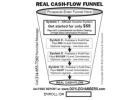 MONEY TALKS, WILL YOU LISTEN?Start Your Own Biz - Shelbyville (Tennessee) - April 30, 2026 Free
MONEY TALKS, WILL YOU LISTEN? If your present career won't bring you financial freedom and the time to enjoy your life, call now! Can you afford not to visit my website? Free Report! Please visit here for more details...
-
 Smart Connect business solutionsWeb Traffic - Sandy Springs (South Carolina) - May 6, 2026 Free
Get Paid Faster With Smart Connect Payments Looking for a simple way to accept payments for your business? Smart Connect Payments helps businesses process credit card payments quickly, securely, and affordably. Accept Credit & Debit Cards Fast Paymen...
-
 Get started todayStart Your Own Biz - Arbutus (Maryland) - May 1, 2026 Free
Earn $100 Per Sale Without Talking to Anyone! ==> Stop wasting time with complicated systems. ==> Start earning $100 per sale immediately! Work From Home, Part-Time No Experience or Selling Required Our System Does the Work for You Watch the free vid...
Latest Listings
-
 Hi, Are You Looking For An Amazing New Opportunity?Start Your Own Biz - - June 10, 2026 Free
Grow Your Own Business working from home or on the go. Worldwide 150 Billion Dollar Industry and you can have your share. It is FREE to take a look. No Money Required. Reserve a top spot now in prelaunch. Please visit here for more details...
-
Learn how to earn $500 a day we close the sales for youStart Your Own Biz - - June 10, 2026 Free
Are you tired of your 9 to 5 job? Or you lost your job you thought you can rely on? Are you set for life or do you need cash flow for unexpected expenses? I'd like to show you an online money-making system that is helping people earn money from home....
-
 Heavy Equipment Auctions for Contractors and Fleet OwnersTrucks - Commercial Vehicles - Fremont (Nebraska) - June 10, 2026 Check with seller
Taylor & Martin, LLC provides professional heavy equipment auctions for contractors, construction companies, dealers, and fleet operators. Serving Fremont, Nebraska and buyers nationwide, our auction platform connects sellers with motivated bidde...
-
 Invoidea is a Trusted CRM Development Company in India for Business GrowthEverything Else - Albion (Iowa) - June 10, 2026 Check with seller
Invoidea is a trusted CRM Development Company in India helping businesses streamline customer interactions, sales management, and operational workflows. Our experienced developers create customized CRM solutions that centralize customer data, improve...
-
 Advanced Power Quality Solutions for Reliable Performance | Hatch PowerServices - Markham (Ontario) - June 10, 2026 Check with seller
Power quality solutions safeguard critical infrastructure by stabilizing voltage, reducing downtime, and improving efficiency. Designed for modern data centers, they ensure consistent, reliable energy flow that keeps operations running smoothly and s...
-
YOUR OWN DIGITAL AGENCYTurnkey Websites - - June 10, 2026 Free
What if we could provide you everything you need to start your own Digital Agency in the next 2 hours? We have Agency Websites set up & ready to receive Income! Plus all the Guides and Marketing Materials you need to run your new business. Your o...
-
 Colorado Duck HuntingBusinesses For Sale - Canon City (Colorado) - June 10, 2026 Free
Ready for an unforgettable waterfowl adventure? Experience premier Colorado Duck Hunting with Birds And Bucks Outdoors. Enjoy guided waterfowl hunts, expert scouting, quality equipment, and access to productive hunting locations. Book your Colorado D...
-
 Premium Pet Food & Accessories Online - Best Deals at PetsHeart!Animals - Indore (Madhya Pradesh) - June 10, 2026 Free
Give your furry friends the love and nutrition they deserve! Shop premium quality pet food, interactive toys, grooming essentials, and accessories online at PetsHeart. We offer top international brands, amazing discounts, and fast doorstep delivery a...
-
Unlock Your Path to Global Prosperity with Prosperity HighwayStart Your Own Biz - Asotin (Washington) - June 10, 2026 Free
In today's fast-paced world, the idea of working from home and running a global business is no longer just a dream - it's a reality. The Prosperity Highway Global opportunity offers individuals the chance to embrace financial freedom while working fr...
-
Generational Savings Plan; OWN New 2025 vehicle Of Choice ASAP after one year of membership 2025 CarAgents Dealers Wanted - Albion (Idaho) - June 10, 2026 Free
Welcome to... The Entryway into the New Sharing Economy. You are about to embark on a journey that can potentially change how you view the world, and it all begins with sharing. Beyond Infinity is changing the paradigm of what it means to truly ...